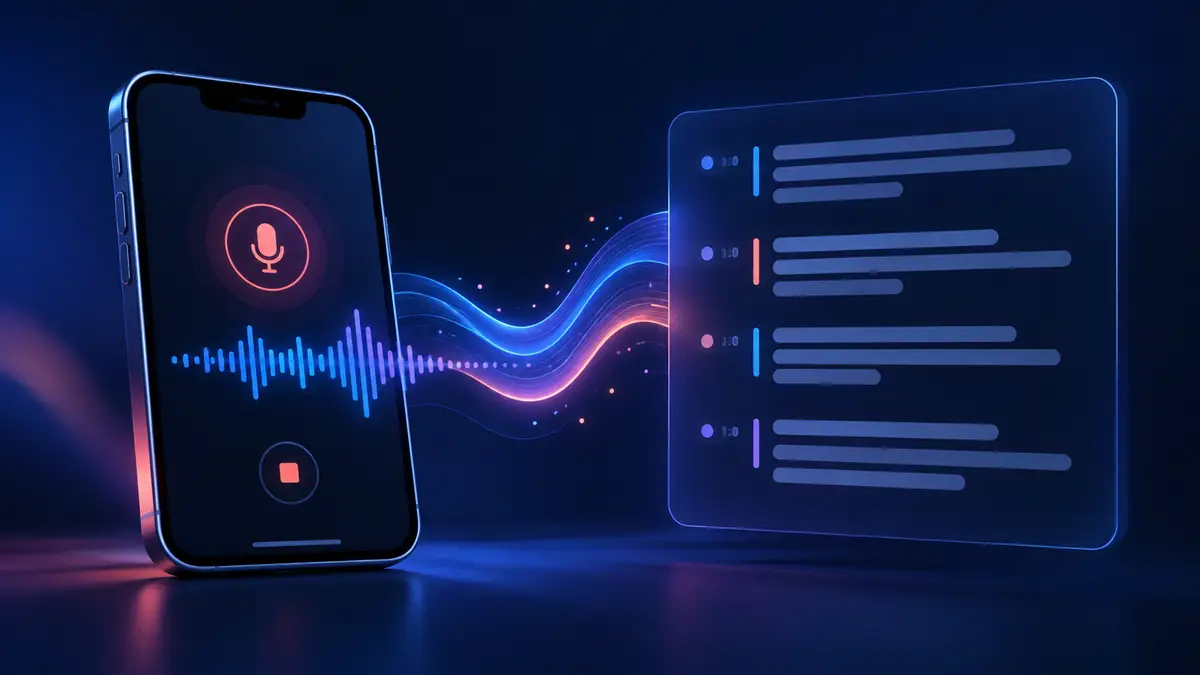
Transcribe iPhone voice memo
Transcribe an iPhone voice memo to text
Answer: export the recording from Apple Voice Memos, choose the audio file below, and transcribe it in this browser tab. The file is processed locally rather than uploaded.
Transcript
Review names, numbers, and unclear sections before sharing the transcript.
How to transcribe an iPhone voice memo
- Open Voice Memos on your iPhone and share or save the recording as an audio file.
- Choose the exported file above.
- Select the spoken language, then run the transcription.
- Copy the result or download TXT, SRT, or VTT.
What this page can and cannot do
This iPhone voice memo transcription tool runs in your browser and does not require an account. It can create a timestamped draft from an exported recording, but names, overlapping speakers, background music, and unclear audio still need review.
Questions people ask
Can I transcribe an iPhone voice memo without uploading it?
Yes. After you export the recording from Voice Memos, this page processes the selected file in the browser tab instead of sending it to a transcription server.
Which format should I export from Voice Memos?
Use the format your iPhone provides, commonly M4A. If you already have MP3, WAV, or MP4, those are accepted too.
Why should I review the transcript before sharing it?
Names, numbers, overlapping speakers, music, and unclear recordings can produce wording that needs checking against the original audio.
Related voice memo searches
This page covers transcribe iPhone voice memo. For the broader voice memo to text workflow, see voice memo to text, including transcribe voice memos, transcribe Apple Voice Memos, voice memo to text converter, and convert voice memo to text.