Zoom transcription · exported recording file
Zoom Transcription from a Recording File
To transcribe a Zoom recording with Reelscriptly, export the recording to your device and choose the saved file in the audio-to-text tool; Reelscriptly does not access Zoom accounts, meeting links, or live meetings.
This is a file-based way to transcribe Zoom audio after a call. It does not sign in to Zoom, fetch a recording from a meeting URL, or replace Zoom's live transcription features. For a general audio-to-text workflow, use the audio to text tool.
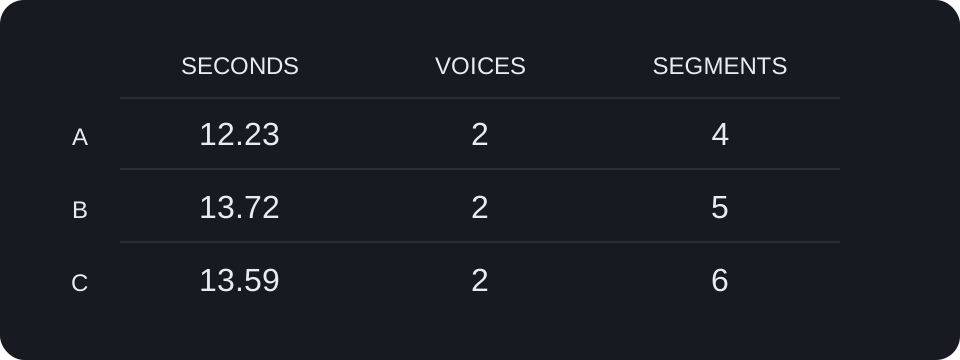
Three two-voice test recordings
These English reference dialogues were written before the recordings were synthesized locally as alternating kal and slt text-to-speech voices. Each linked WAV is the original test audio. We selected English in the tool and copied the timestamped output below. These are reproducible tests of locally created files, not recordings of actual Zoom meetings.
To repeat one, play or download its WAV, open the audio transcription tool, select English, choose the file, and press Transcribe. The first clip was also tried once with Auto-detect, which returned “Could not reliably transcribe this audio: abnormal repetition detected, so no result was shown.” The comparison below uses its successful English-mode run.
Room number and participant names
Reference dialogue:
Speaker 1: “Please move the Zoom call to room thirteen.”
Speaker 2: “Room thirty not thirteen. The invite says thirty.”
Speaker 1: “Add Nina to the transcript before lunch.”
Speaker 2: “Nina with an N. Save the file as Tuesday planning.”
Reelscriptly output:
[00:00:00.000] Please move as soon call to room 13.
[00:00:02.879] Room 30 not 13, the invite says 30
[00:00:06.000] 9 out of that transcript before launch
[00:00:08.759] 9 in within and save file s2's deep landing
Observed difference: “the Zoom call” became “as soon call”; “Add Nina … before lunch” became “9 out of that transcript before launch”; the final Nina/file-name line became “9 in within and save file s2's deep landing.”
Folder name and recording length
Reference dialogue:
Speaker 1: “Can you transcribe the Zoom recording from Cedar team?”
Speaker 2: “Cedar not Seater. The folder name is Cedar two.”
Speaker 1: “The file is forty eight minutes long.”
Speaker 2: “I heard fourteen minutes. Please check the original recording.”
Reelscriptly output:
[00:00:00.000] Can you transcribe the Zoom recording from Cedar Team?
[00:00:03.600] Cedar not cedar, The folder name is cder2.
[00:00:07.200] The file is 48 minutes long
[00:00:09.800] I heard 14 minutes please check
[00:00:12.000] the original recording
Observed difference: “Cedar two” became “cder2,” dropping the “a” and changing the spoken number to a digit; the “Seater” contrast was not preserved. The forty-eight- and fourteen-minute values appear as 48 and 14.
Deadline and exported file
Reference dialogue:
Speaker 1: “The Zoom transcript is due by nine fifteen.”
Speaker 2: “Nine fifty not nine fifteen. The client changed the deadline.”
Speaker 1: “Export the recording to your local audio folder.”
Speaker 2: “Use the saved file, not a meeting link.”
Reelscriptly output:
[00:00:00.000] The Zoom transcript is due by 915.
[00:00:03.180] 950 not nine 15, the client changed to deadline
[00:00:07.700] Expart your according
[00:00:08.779] To Your Local Audio folder
[00:00:11.080] Use this save file
[00:00:12.140] Not a meeting link
Observed difference: The spoken times were rendered as digits and the correction line was shortened; “Export the recording” became “Expart your according”; “Use the saved file” became “Use this save file.”
Zoom transcription questions
How do I transcribe a Zoom meeting recording?
Export the recording from Zoom, open the audio-to-text tool, select the saved file, and click Transcribe.
Can I get a Zoom transcript from a meeting link?
No; this tool needs a recording file exported to your device and cannot access a Zoom account or fetch a meeting link.
Can I use Zoom transcription during a live meeting?
No; this page transcribes a saved recording after the meeting, while real-time transcription is handled by Zoom's own features.
For a Zoom meeting transcription or a Zoom transcript, export and review the saved recording after the call. The related searches “Zoom recording transcript,” “transcribe Zoom recording,” and “transcribe Zoom” all lead to this same file-based workflow, not separate pages.
Return to Instagram Transcript · Open the general audio to text tool